I added a second public IP address to the VPS that was already running AmneziaVPN with XRay. On Windows, I added a separate profile for the new address and used AmneziaVPN to discover the XRay service already running on the VPS. This let me keep the original profile and its existing VPN keys.
Add the new address in AmneziaVPN
Once the second public IP was assigned to the same VPS, I used the existing SSH credentials to add it in AmneziaVPN.
- Disconnect the VPN, click the + button in AmneziaVPN, and choose Self-hosted VPN.
- Enter the new public IP and the SSH username and credentials for the existing VPS. If SSH uses a custom port, enter the address as
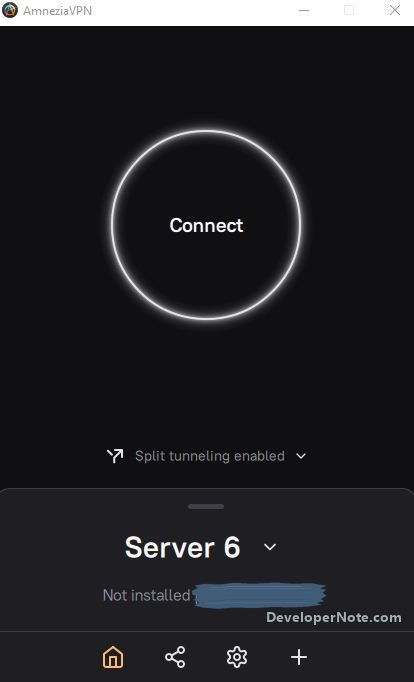
IP:SSH_PORT. - Choose Skip setup. AmneziaVPN adds the connection profile. At this point the new profile, Server 6 in my case, can show Not installed because it has yet to discover the existing service.
Find the existing XRay service
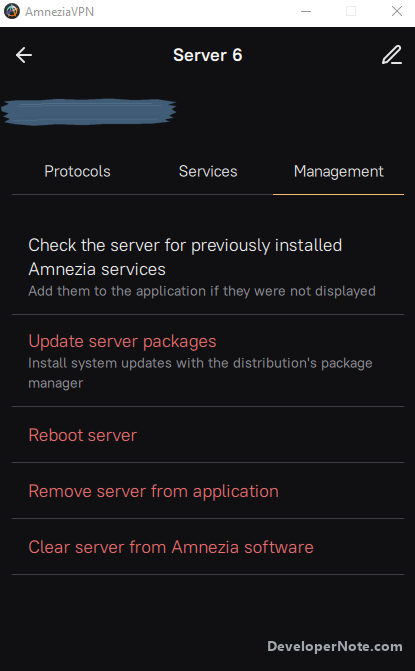
- Open the server list and click the gear icon next to the new profile.
- On the Management tab, click Check the server for previously installed Amnezia services.
- When XRay appears, select it for the new profile and click Connect. With split tunneling enabled, test a site that is routed through the VPN.
See the AmneziaVPN setup guide for the Skip setup and service discovery steps.
What happens to the old keys
The same XRay installation serves both addresses as long as its existing port is reachable through both. Profiles that contain the old IP still dial that address, so I kept the original profile available for as long as the old IP is reachable.
To move a device that already has a vless:// link to the new IP, copy its link and replace only the server address. Keep its UUID, port, and REALITY parameters. Import the copy as a separate profile and test it before retiring the old address.
If the new profile discovers XRay but cannot connect, check whether the existing XRay port is reachable on the new address. Check the VPS firewall and any provider-side firewall or port forwarding that applies to the new IP.