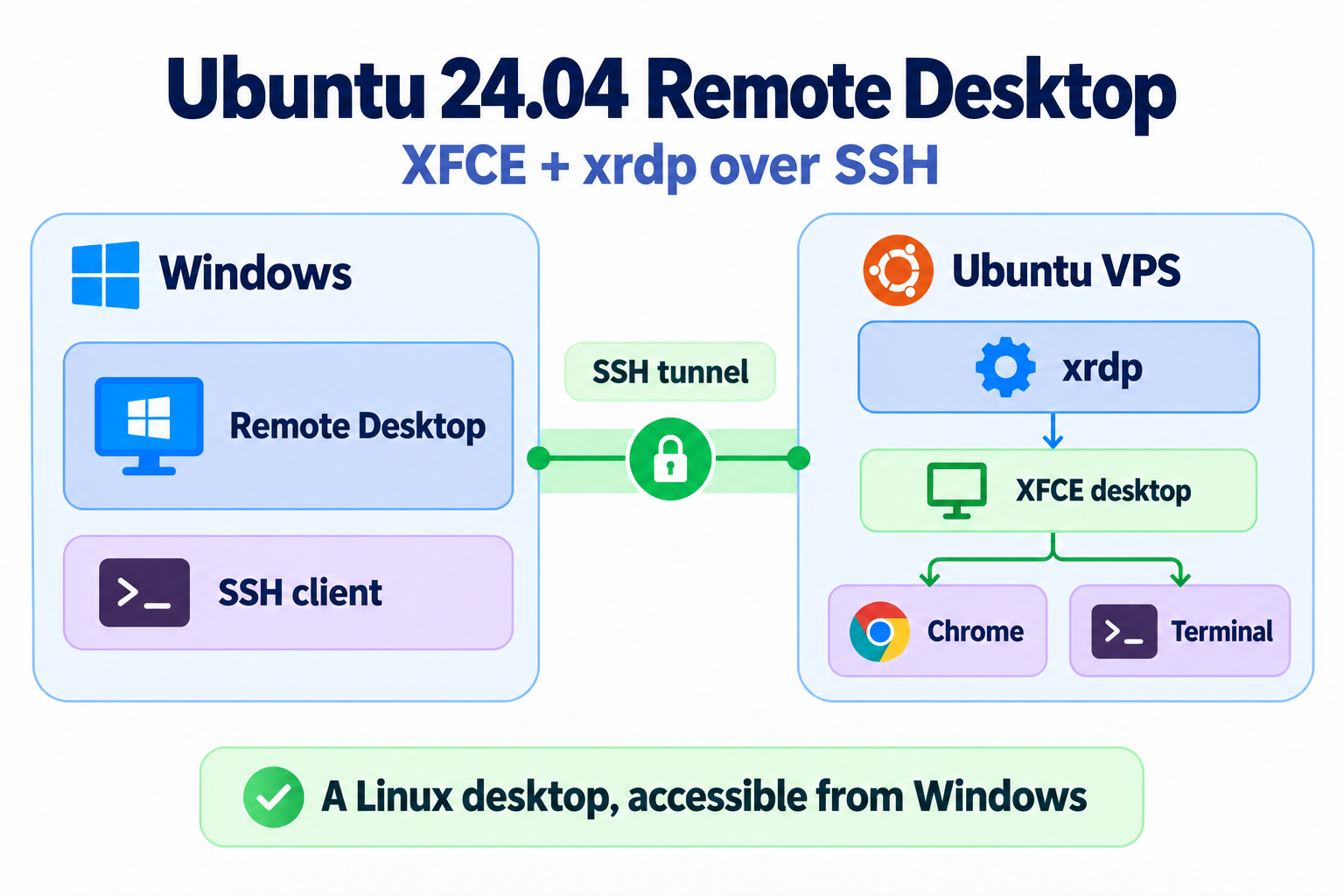
This guide explains how to add a graphical desktop to an Ubuntu 24.04 VPS and access it using Windows Remote Desktop. The setup uses XFCE, xrdp, and a regular Linux user. RDP connections travel through an SSH tunnel, with xrdp listening only on localhost.
Install XFCE and xrdp
Run the following commands in the server’s SSH terminal as root. If you normally use a sudo account, run sudo -i first.
apt update
apt install -y xfce4 xrdp xorgxrdp dbus-x11
adduser xrdp ssl-cert
XFCE provides the desktop, xrdp accepts Remote Desktop connections, and xorgxrdp provides the Xorg backend.
Create a desktop user
Create a regular user and set its password when prompted. This password will be used at the xrdp login screen.
adduser desktop
printf '%s\n' 'exec startxfce4' > /home/desktop/.xsession
chown desktop:desktop /home/desktop/.xsession
chmod 644 /home/desktop/.xsession
If desktop already exists, skip adduser desktop. The graphical session and browser run as this user; administrative commands remain in the root SSH terminal.
Bind xrdp to localhost
Back up the configuration and open it in an editor:
cp -a /etc/xrdp/xrdp.ini /etc/xrdp/xrdp.ini.bak
nano /etc/xrdp/xrdp.ini
In the [Globals] section, replace the existing port=3389 line with:
port=tcp://127.0.0.1:3389
Leave the port settings in other sections unchanged. Enable and restart the service:
systemctl enable xrdp
systemctl restart xrdp
systemctl status xrdp --no-pager
ss -ltnp 'sport = :3389'
The listener should be 127.0.0.1:3389. You do not need to open public port 3389 in either the VPS firewall or the provider’s firewall; SSH must remain reachable.
Open an SSH tunnel from Windows
In Windows PowerShell, replace SERVER_IP with your VPS address and SSH_USER with your existing SSH login. In our setup, the SSH login was root.
ssh -N -o ExitOnForwardFailure=yes -L 127.0.0.1:13389:127.0.0.1:3389 SSH_USER@SERVER_IP
Keep this PowerShell window open. After authentication, no shell prompt is expected: SSH is forwarding the local port. If your SSH server uses a nonstandard port, add -p PORT.
Connect with Windows Remote Desktop
In another PowerShell window, run:
mstsc /v:127.0.0.1:13389
At the xrdp login screen, select Xorg, enter desktop as the username, and supply the Linux password created earlier. XFCE should open. A certificate warning can occur with the default xrdp certificate; verify that you are connecting through your own tunnel.
Install and run Chrome
For an amd64/x86-64 VPS, install Google Chrome from the root SSH terminal:
apt install -y curl
curl -fL https://dl.google.com/linux/direct/google-chrome-stable_current_amd64.deb -o /tmp/google-chrome-stable_current_amd64.deb
apt install -y /tmp/google-chrome-stable_current_amd64.deb
Inside the XFCE desktop, open a terminal as desktop and run:
google-chrome
Use Ctrl+Shift+N for an Incognito window. The browser runs on the VPS and uses its network connection. On a small VPS, keep the number of tabs low.
Copy and paste
Before connecting, open Show Options → Local Resources in Windows Remote Desktop and enable Clipboard. Reconnect if you changed the setting. Use Ctrl+C/Ctrl+V in graphical applications; in the XFCE terminal, paste with Ctrl+Shift+V.
Troubleshooting
For a failed login or a desktop that closes immediately, check the server logs:
journalctl -u xrdp -u xrdp-sesman -n 80 --no-pager
tail -n 80 /var/log/xrdp-sesman.log
References: xrdp project documentation and Ubuntu xrdp.ini manual.